Mailbox replaces your mail program
Mailbox is a complete mail client inside Odoo. You connect your Office 365 account once, and from then on your daily mail work happens in Odoo. The assistant pre-sorts incoming messages, translates foreign languages and helps you write. And because the mailbox lives in Odoo, Sales, CRM and Helpdesk are never more than a click away.
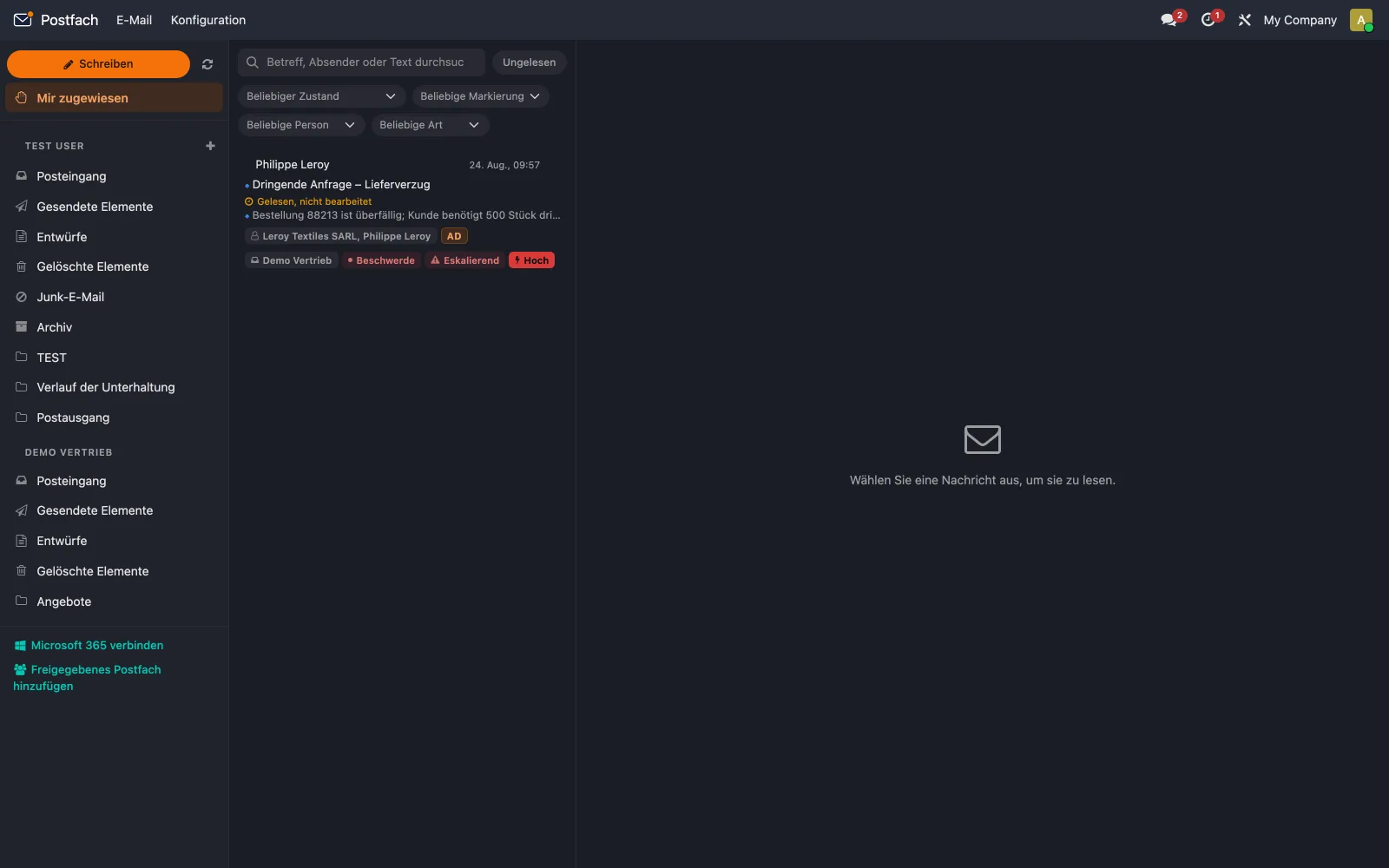
Select a message to read it.
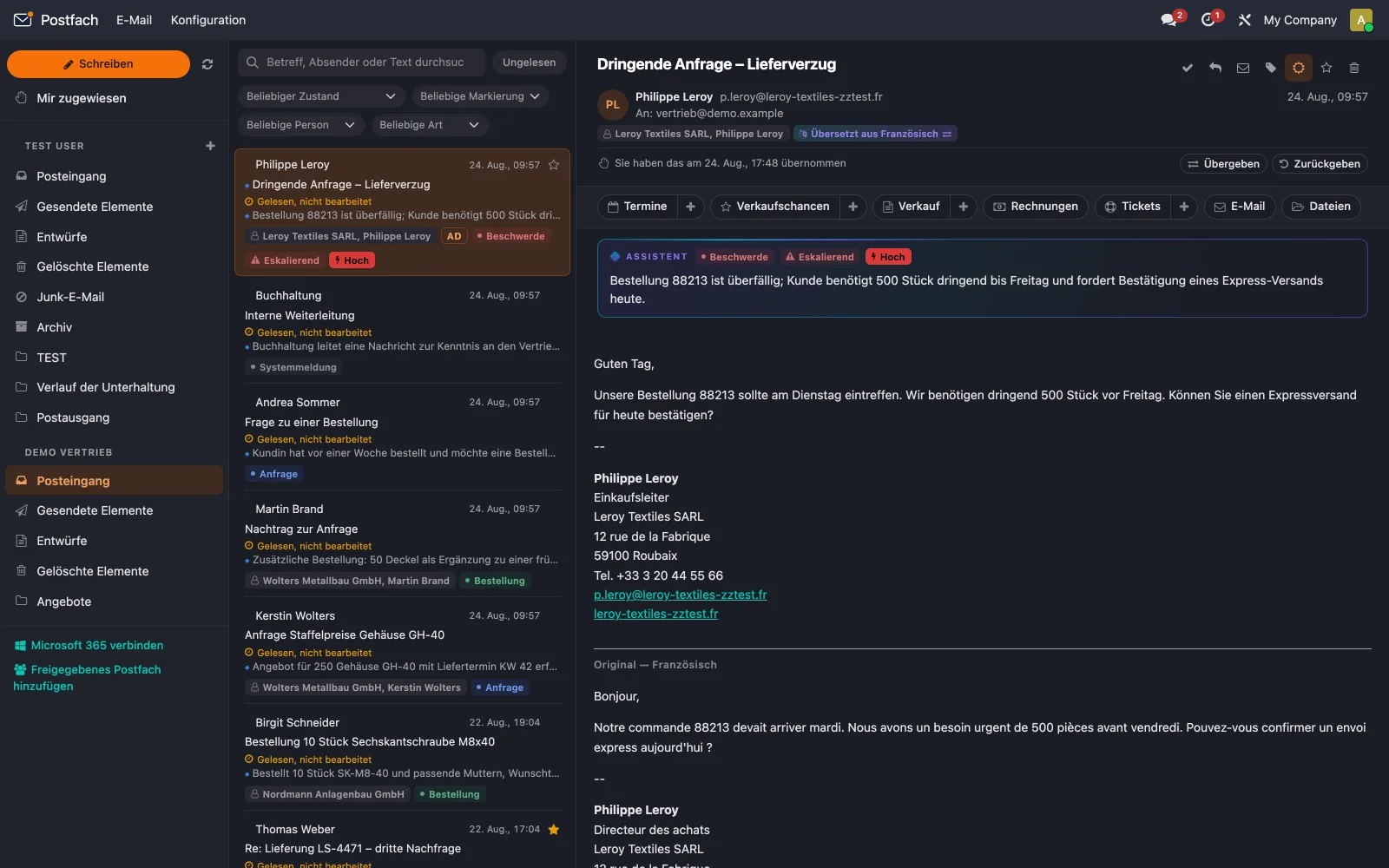
Mail and customer data in one place
Whoever reads a mail sees right next to it what Odoo holds on the sender. The constant switching between mail program and ERP falls away.

A mail client inside Odoo
Mailboxes and folders on the left, the message list in the middle, the open mail on the right – built like a modern mail program, only inside Odoo. Your mail now lives in the same system as your customers, quotations and invoices.

Personal and shared mailboxes
Everyone works in their own mailbox. Shared mailboxes such as info@ or sales@ are handled by the team together: every mail can be assigned to a person, and everyone sees who is taking care of it.

Office 365 integration
You sign in once, Odoo does the rest: address, folders and sender name are taken from Office 365 automatically. There is nothing to type in by hand.
Built in modules –
you install only what you use
Mailbox consists of nine addons. Only the base module is required; all the others connect the mailbox to one Odoo app each, such as Sales or Helpdesk. Whatever you have not installed does not appear in the interface either.
Shared mailboxes are not created twice in the process: if a second authorised person connects the same mailbox, they get access to what is already there.
Nine addons
One base module and eight optional extensions for your Odoo apps
1,056 tests
Automated tests that run on every change
Odoo 19
Runs on the Community edition; only the ticket integration needs Enterprise

Office 365 integration
Personal and shared mailboxes
Fully localised – in the browser too
Signatures with a validity period
Light and dark mode
Everything familiar is there
There is little to relearn when you switch: the folders are the same as before, and whatever a mail program needs to do day to day, Mailbox does too.
Inbox, folders and subfolders
Drafts, outbox and sent items
Deleted items and junk mail
Archive and conversation history
Search across subject, sender and body
Reply, forward and distribution lists
Attachments – or expiring download links
Personal and company-wide signatures
Time-limited signatures for trade fairs and campaigns
Embedded images from the message body
Signed S/MIME messages
What Mailbox cannot do is further down this page.
Work as a team without getting in each other's way
Whether a mail has been read and handled, who took it on and which mark it carries – Mailbox stores all of that on the message itself. The whole team sees the same state, and nobody accidentally answers a mail somebody else is already working on.
Mails can be taken on or handed to colleagues. The list shows the initials of the person responsible; the open mail is more precise: who took it on, when and from whom it was handed over, who read it first and who closed it.
On top of that there are two configurable deadlines: if a mail stays unread or unhandled for too long, Mailbox highlights it in the list.

“Assigned to me” – everything on your plate at a glance
Above the mailboxes sits the “Assigned to me” view. It collects every mail handed to you – including from mailboxes you otherwise have no access to. That is particularly handy when covering for someone: a colleague gives you a single case from their personal mailbox without opening up the whole mailbox.
The permissions behind it are tightly drawn. Whoever is handed a mail may read and handle exactly that mail, and nothing more. Moving, deleting or sending from someone else's mailbox is not possible.
Who may read which mailbox, send from it and administer it is set in a single place – per user or per group. There is no second place where permissions are granted.
Sales, CRM and Helpdesk – right beside the message
Whoever opens a mail usually wants to know two things: who is writing, and what is already going on with this customer? Mailbox answers both directly above the message. Every installed Odoo app contributes an entry there and shows how many records exist for this customer. New records you create straight from the mail.

Sales
- App
- Sales
- Counts
- the customer's quotations and orders
- Creates
- quotation from the message
Opportunities
- App
- CRM
- Counts
- the customer's opportunities
- Creates
- lead – or a link to an existing one
Tickets
- App
- Helpdesk
- Counts
- the customer's tickets
- Creates
- ticket, pre-filled
Meetings
- App
- Calendar
- Counts
- meetings with this contact
- Creates
- meeting, pre-filled
Invoices
- App
- Accounting
- Counts
- the customer's invoices
- Creates
- —
- App
- Mailbox
- Counts
- the correspondence so far
- Creates
- —
Files
- App
- Documents
- Counts
- documents on the company
- Creates
- —
The assistant highlights the entry that matches what the mail is about – for an order, for instance, “Sales”.
A customer mail becomes a quotation
When a customer writes an order, the assistant reads the line items out of the mail: quantity, unit, article number, description. Every line is matched against your product master data.
If an article number or a barcode matches, the case is unambiguous and the line is pre-selected. If only the name matches, Mailbox suggests the product but does not select it. Such matches are meant to be looked at once more before they end up in an order.
The quotation is only created once every line has been confirmed.
Leads, tickets and meetings work the same way: customer, contact and address are already filled in, and the priority follows the estimated urgency of the mail.
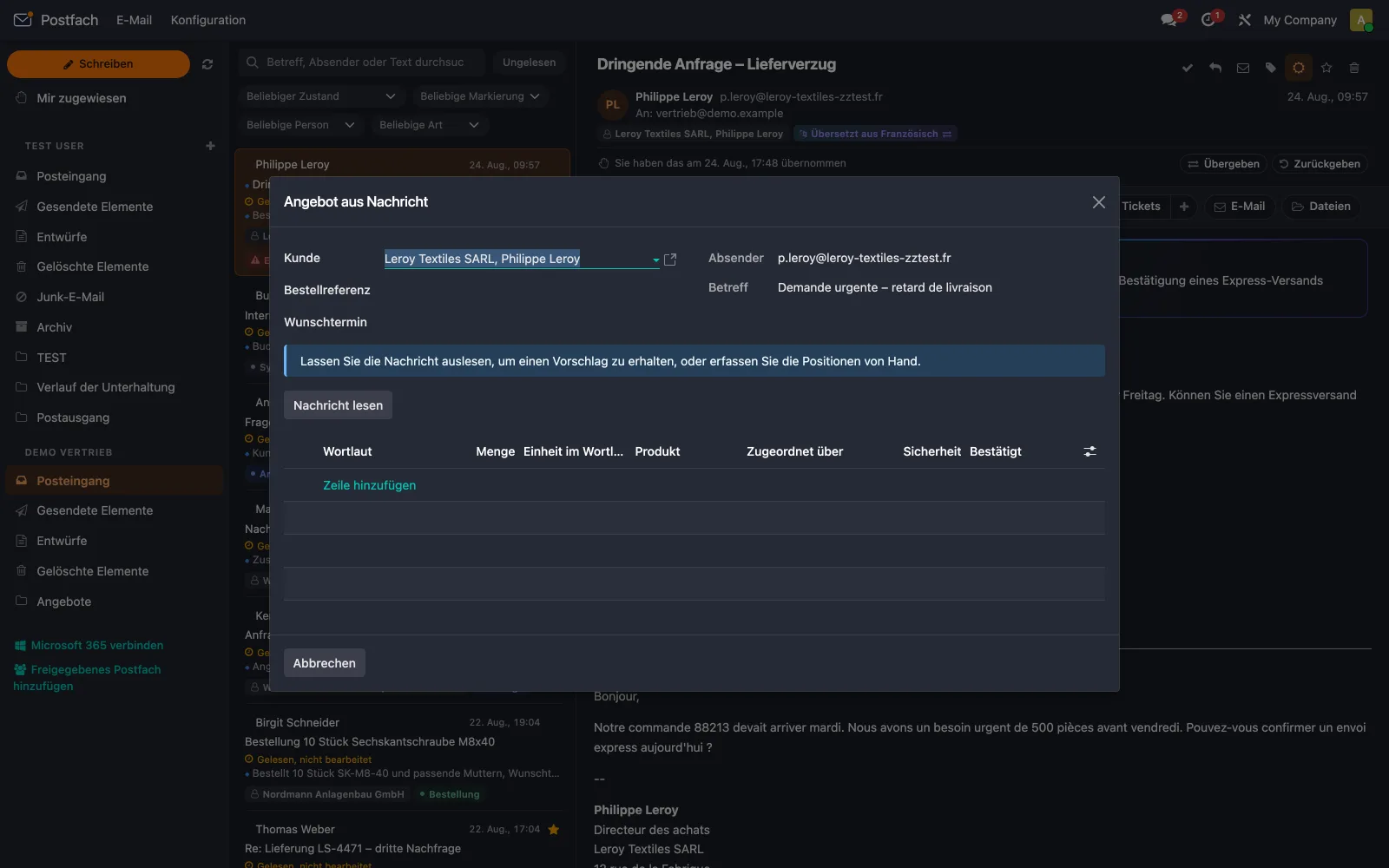
Linked, not copied in
A ticket or quotation created from a mail takes over its summary and a link to the message. The full mail text is deliberately not copied in – otherwise the signature, the disclaimer and the whole quoted history would sit in the record, and the two sentences that matter would have to be hunted down inside it.
The other way round, quotations can be mailed straight from their form, using the mailbox's signature. The next time the Sent folder is synchronised, Mailbox automatically files the sent mail against the quotation.
Pre-sorted, translated, drafted
Every AI function has a switch of its own. Anything that incurs cost is off out of the box and stays off until you enable it.

Pre-sorted
Incoming mail gets a category – enquiry, order, invoice, complaint, application and several more – plus an urgency and a short summary. The summary appears right in the message list, where the first line of body text would otherwise be.

Translated
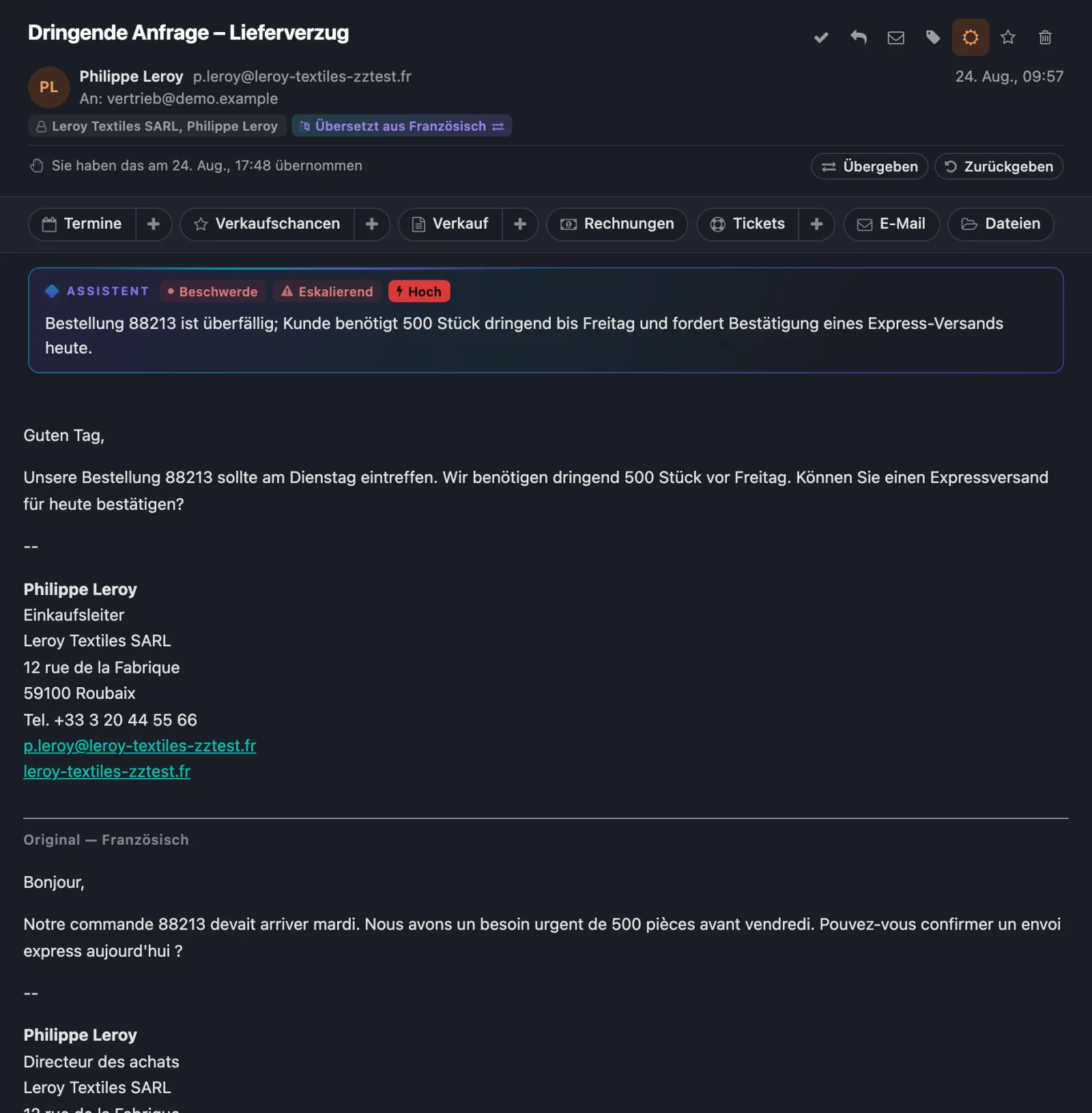
The assistant translates foreign-language mail into your language as it arrives. When you open it, the translation is already there, and the original stays readable underneath.

Drafted and corrected
You note down in keywords what the reply should say, and the assistant turns it into a finished mail. Or you write it yourself and have only spelling and grammar corrected. Both are separate functions with separate switches.
The translation does not replace the original
In the open mail, the translation is on top and the original underneath, both clearly labelled. The subject is translated along with it.
Translating and categorising happens once per message, not afresh for every reader. That keeps the cost small, particularly in shared mailboxes.
There is also a daily limit on the cost, and each task can use its own AI model – a cheap one for sorting, a better one for writing. Mails the AI helped write carry a note saying so.
Keywords become a finished mail
Jot down briefly what the reply should say and the assistant takes care of the rest. Anyone who would rather write it themselves uses only the correction: it removes mistakes and leaves the tone untouched. And if the customer writes in another language, you translate your draft before sending with a single click.
No AI runs during sending itself. What goes out is exactly what stands in the draft and what you have approved. Every intermediate step can be undone.
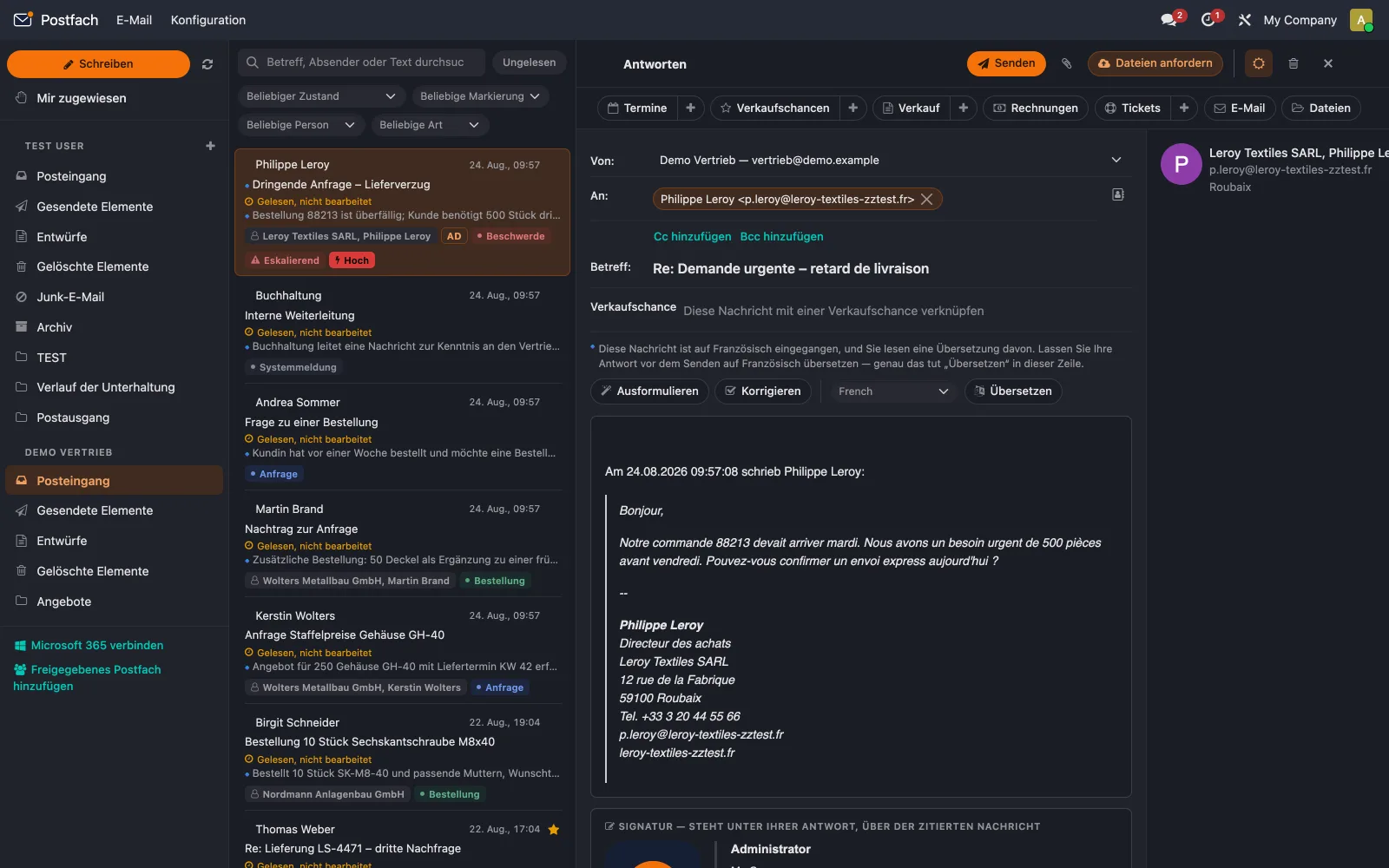
One company signature for everyone, maintained centrally
You maintain the company signature in one place, and it goes out with every mail the company sends – in addition to the personal signature Odoo already knows about. On request it applies only to certain users or mailboxes.
Placeholders fill in the name, role and contact details of the sending person automatically. If a placeholder is empty, Mailbox drops the whole line – so a “Phone:” without a number is never sent.
The signature editor is built for email: it produces tables and inline styles that even older mail programs render reliably. It deliberately does without banners, columns and icon fonts, because how those render at the recipient's end varies wildly. A preview on a light and a dark background shows what the signature will really look like.
Your trade fair appears in every mail the company sends
Every signature can be given a “Valid from” and a “Valid until”. Within that period it replaces the standard signature; afterwards the usual signature returns on its own. Nobody has to remember to put anything back.
That turns the signature into advertising space: the stand with hall and stand number in the weeks before the fair, the new product at launch, the note about the company holidays, the Christmas greeting in December. For as long as the period runs, every mail from the company carries the note – and none after it.
Exactly one signature goes out per mail. If a period is currently running, the time-limited signature takes precedence; otherwise the standard signature applies. If two periods overlap, the signature higher up the list wins.
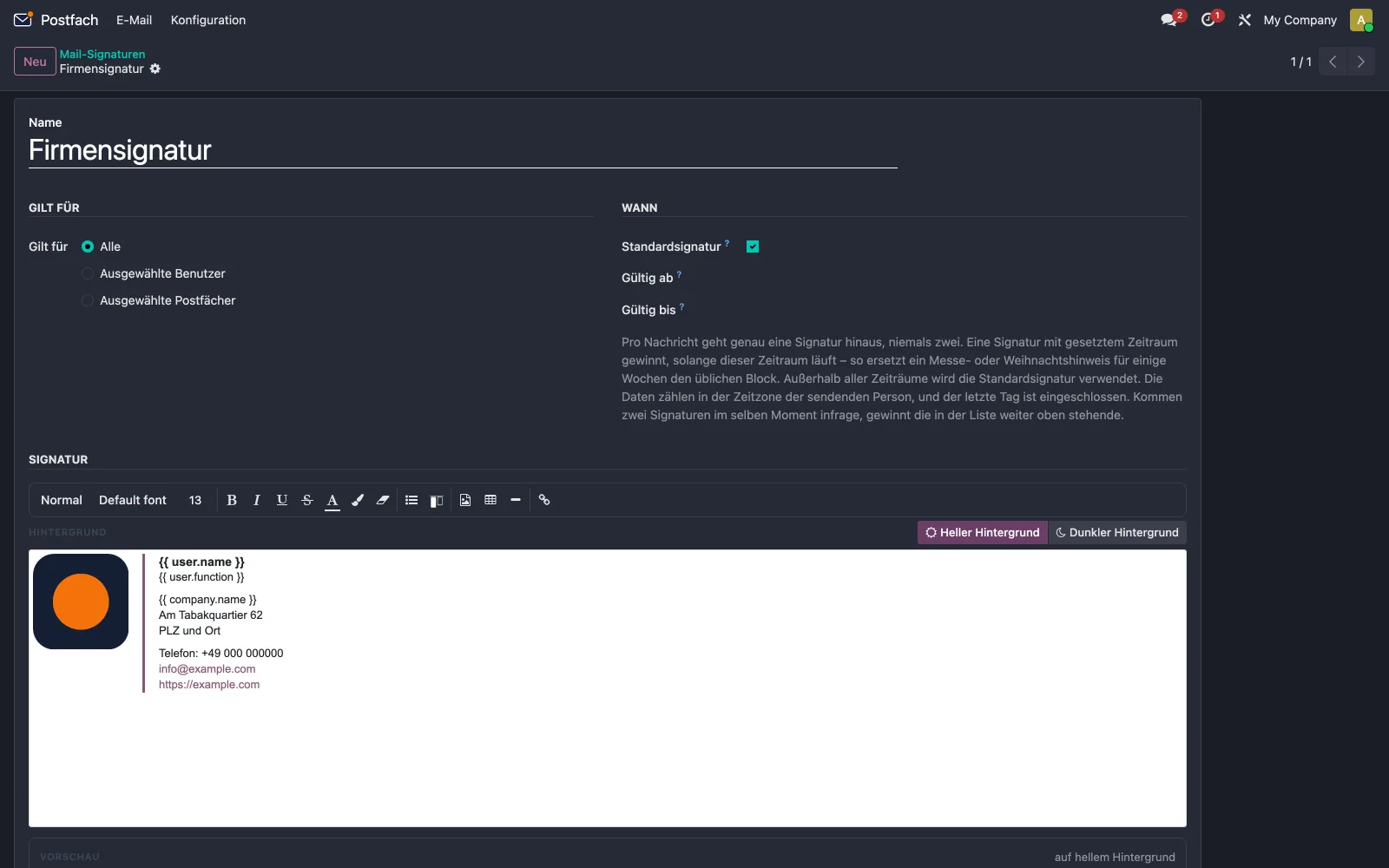
Send files – and request them straight from the mail
Mailbox sends large files as a download link. Together with File Exchange – an addon of its own whose integration Mailbox brings along – that becomes a controlled handover: the link expires, can be given a password, can be revoked, and every download is logged.
It works the other way too: requesting files from the customer. If you need documents, you flip a switch while writing and the mail contains an upload link. The customer needs neither an account nor Odoo access for it. Whatever they upload lands in File Exchange and on the matching record – the ticket the mail was written from, for instance.
That keeps customer documents in Odoo, and even later you can still trace who received or uploaded which file, and when.
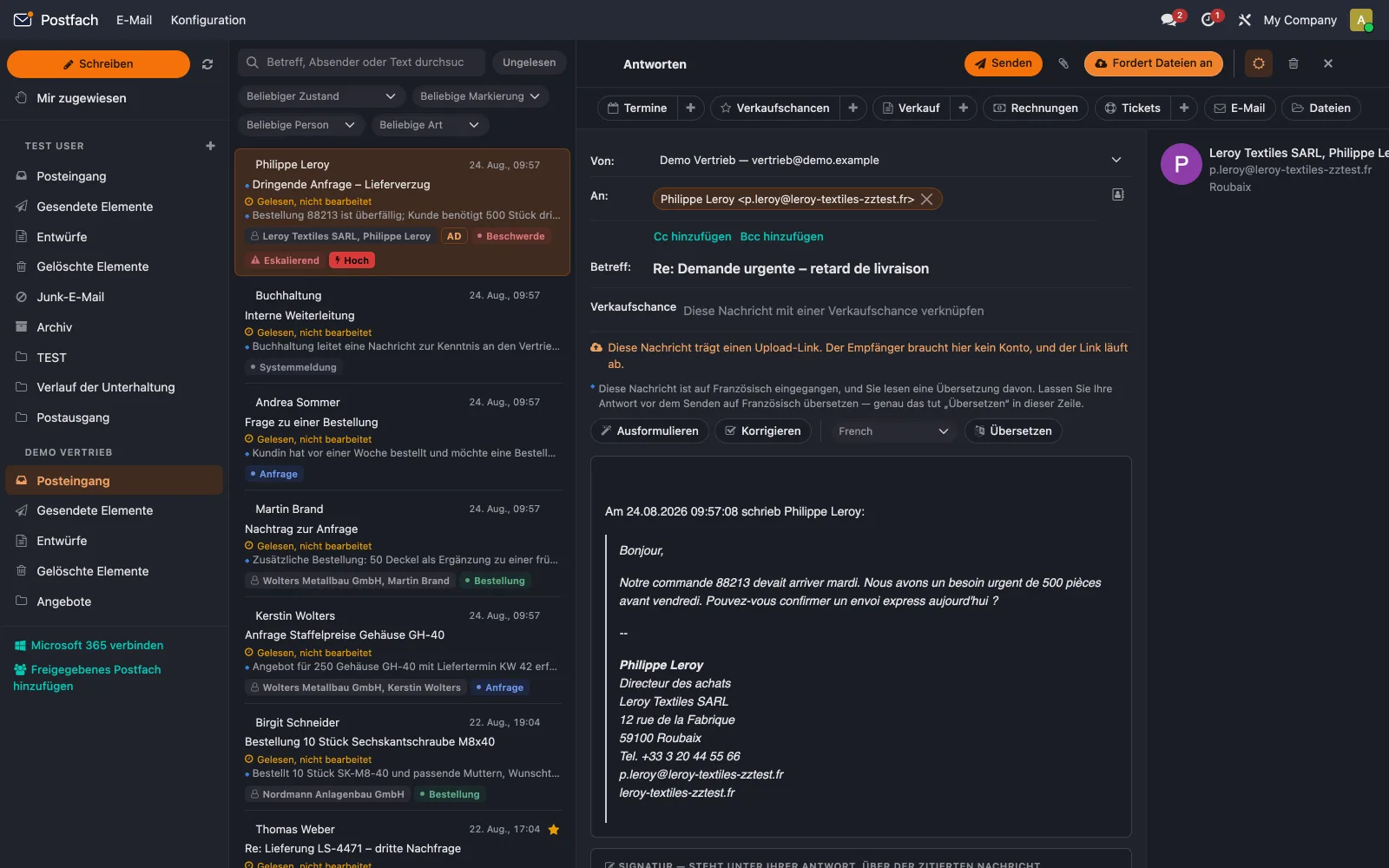
Even other people's mail goes properly dark
Mailbox comes in light and dark. In dark mode it recolours the mails themselves too, hue by hue: black text becomes white, greys stay greys, brand colours stay recognisable. Only images are left untouched, because a photo cannot reliably be told apart from a logo drawn in dark tones.
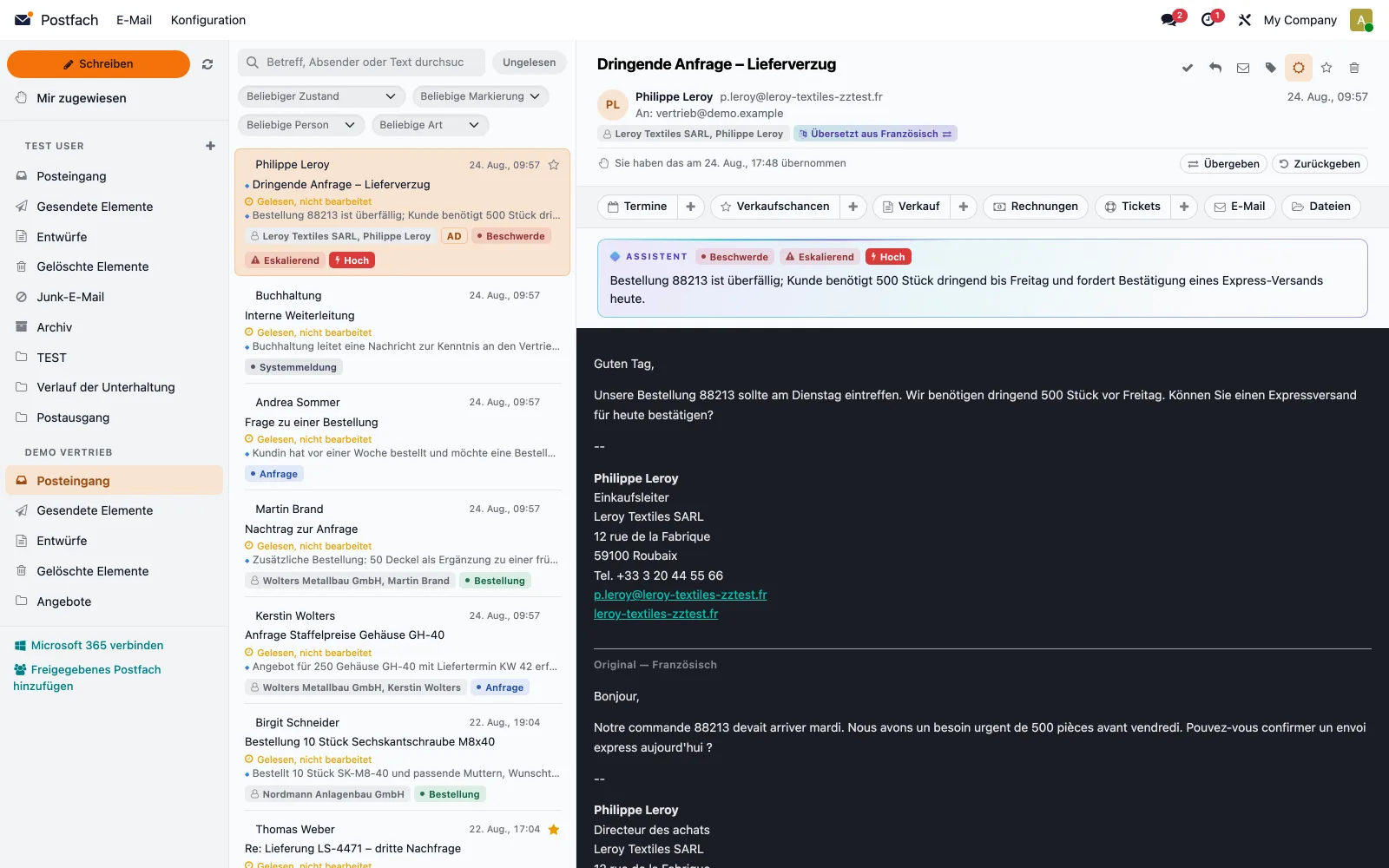
What Mailbox cannot do
The limits belong on this page just as much as the features.
Office 365 only
Mailbox connects to Office 365 accounts. IMAP and other providers are not supported – each would need an addon of its own.
Mailbox cannot open encrypted S/MIME mail
Mailbox opens and displays signed messages just like any other. End-to-end encrypted mail, however, it cannot decrypt, because the private key belongs to the recipient and has no place on a server. Such mail is clearly marked as encrypted. Anyone who receives it regularly still needs a program with access to their own certificate store.
The AI needs your own API key
The assistant runs on Claude, with your key. Every processed mail costs a fraction of a cent; no allowance is included. Everything that incurs cost is switched off to begin with.
The ticket integration needs Odoo Enterprise
The connection to Helpdesk requires Odoo Enterprise. All other addons run on Odoo 19 Community.
File exchange uploads in one piece
That is why the size limit for files is deliberately low for now. Turning it up in the settings changes nothing – and the settings say so.
Mailbox is meant as a complete replacement for your previous mail program. Your Office 365 account stays exactly as it is.
Ready to upgrade your digital core?
Tell us about your company – we'll show you what's possible.
Write us an email at or give us a call at .